
Copy Google Slides™ — without breaking your linked charts
PenguChart duplicates your presentation and its Google Sheets™ files together, then relinks every chart to the new copies. Your original stays untouched.
Free during public beta · Works with Google Slides™ · Available in 16 languages

Why are your charts still linked to the old spreadsheet?
When you use File → Make a copy, Google Slides™ copies the slides - but every embedded chart keeps pointing at the original Google Sheets™ file.
Edit the data in your copy and the original spreadsheet changes too.
Share the copy and recipients can trace it back to your live source data.
The manual fix means deleting and re-inserting every single chart - for every copy.
PenguChart copies the presentation AND its spreadsheets in one run, then relinks every single chart to the fresh copies.
Three steps, one clean copy
Open the assistant
In Google Slides™: Extensions → PenguChart → Start copy assistant.
Choose your options
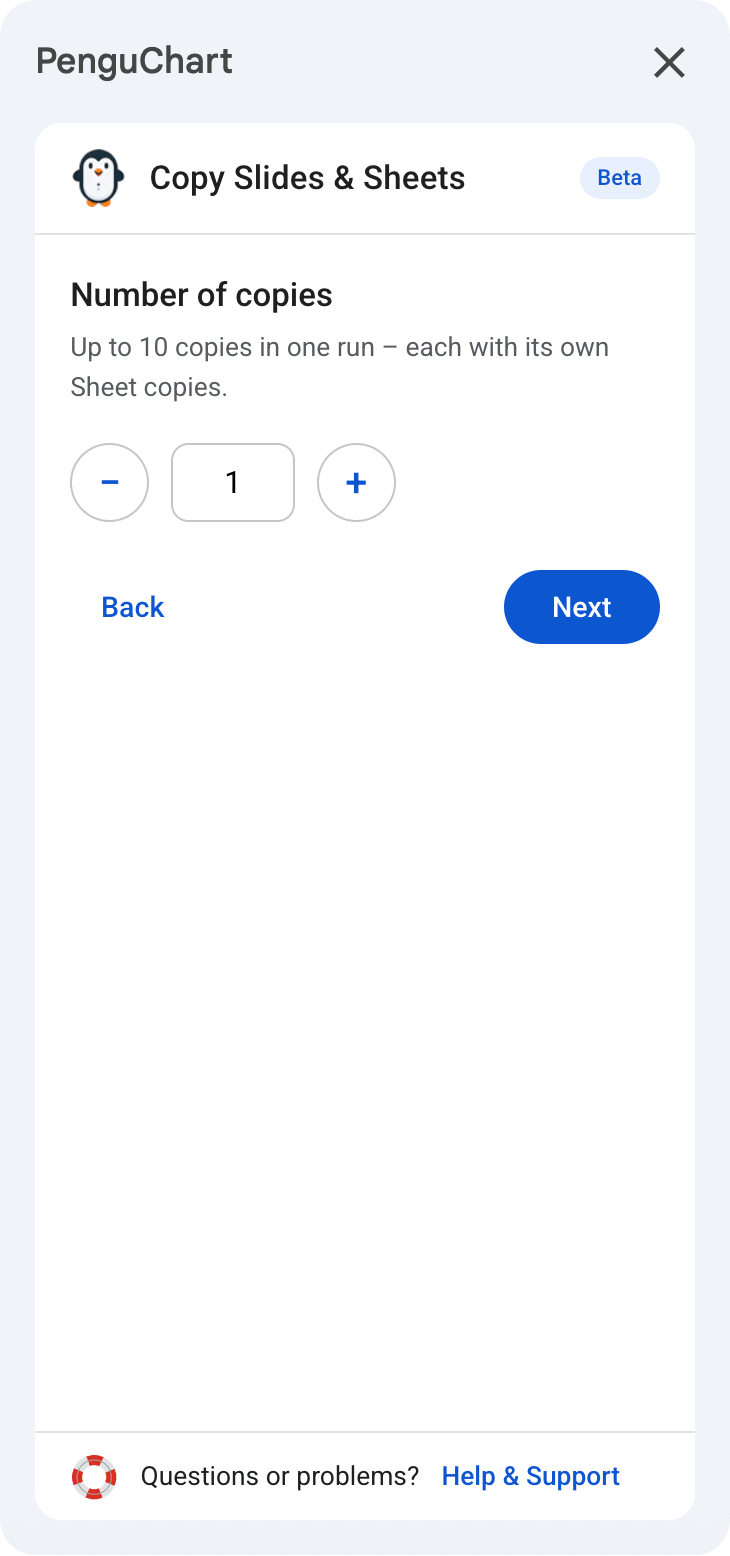
Number of copies, destination folder, and how the linked Sheets™ are handled.
Done
Your copy opens with every chart linked to the new spreadsheets. The original is untouched.
See PenguChart in action

Test-drive PenguChart on a live deck
Open our public demo presentation in Google Slides™ - it comes with two linked spreadsheets. Copy it with PenguChart and watch every chart relink itself.
Open the demo deckOpens in Google Slides™ - you get your own copy to experiment with.

Everything the copy needs to be perfect
True chart relinking
Every embedded Sheets™ chart in the copy points to a fresh spreadsheet copy - verifiable under Tools → Linked objects.
Copy or merge spreadsheets
Duplicate each source file, or merge everything into one combined spreadsheet - including automatic tab renaming on name collisions.
Groups, layers & transforms
Grouped charts, stacking order, rotation and resizing all survive the copy exactly as designed.
Up to 10 copies per run
Need a version per client or per class? Create up to ten fully relinked copies in one go.
Free choice of destination
My Drive, the original's folder, or any folder you pick - PenguChart checks write access first.
Speaks your language
The assistant automatically adapts to your Google language - 16 languages included.
Your Sheets™, your way
Charts from several spreadsheets? Choose how their copies are created:
Individual copies
Each linked spreadsheet is copied on its own. The safe default.
One combined spreadsheet
All tabs from all linked spreadsheets are merged into a single new file.
Only used tabs
Just the tabs your charts actually need - including the tabs their data comes from.
A quick look at the assistant
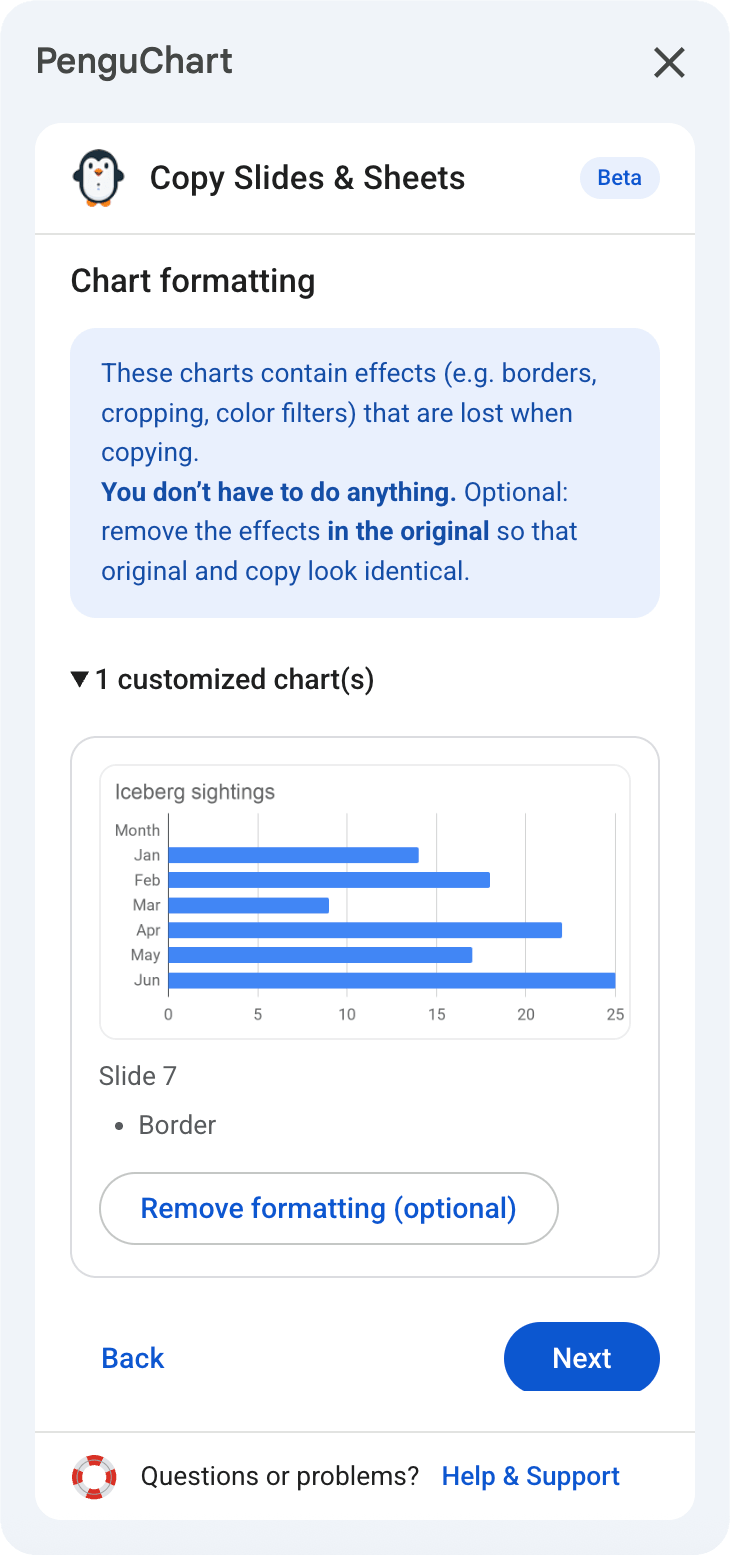
The assistant walks you through a few simple steps - here is the whole flow.




What Google's API cannot transfer
Chart effects applied inside Slides™ cannot be carried over to a copy - that is a Google API restriction, not a PenguChart one:
PenguChart detects these effects, warns you before copying and can optionally remove them from the original so that original and copy look identical.
Frequently asked questions
Why do copied charts still point to the original spreadsheet?
Does PenguChart change my original presentation or spreadsheets?
Which chart effects are not carried over to the copy?
Can PenguChart merge several spreadsheets into one?
Is PenguChart free?
Which permissions does PenguChart need, and why?
Ready to copy without breaking a single chart?
Install PenguChart from the Google Workspace Marketplace - free during the public beta.
Install for free